键盘布局

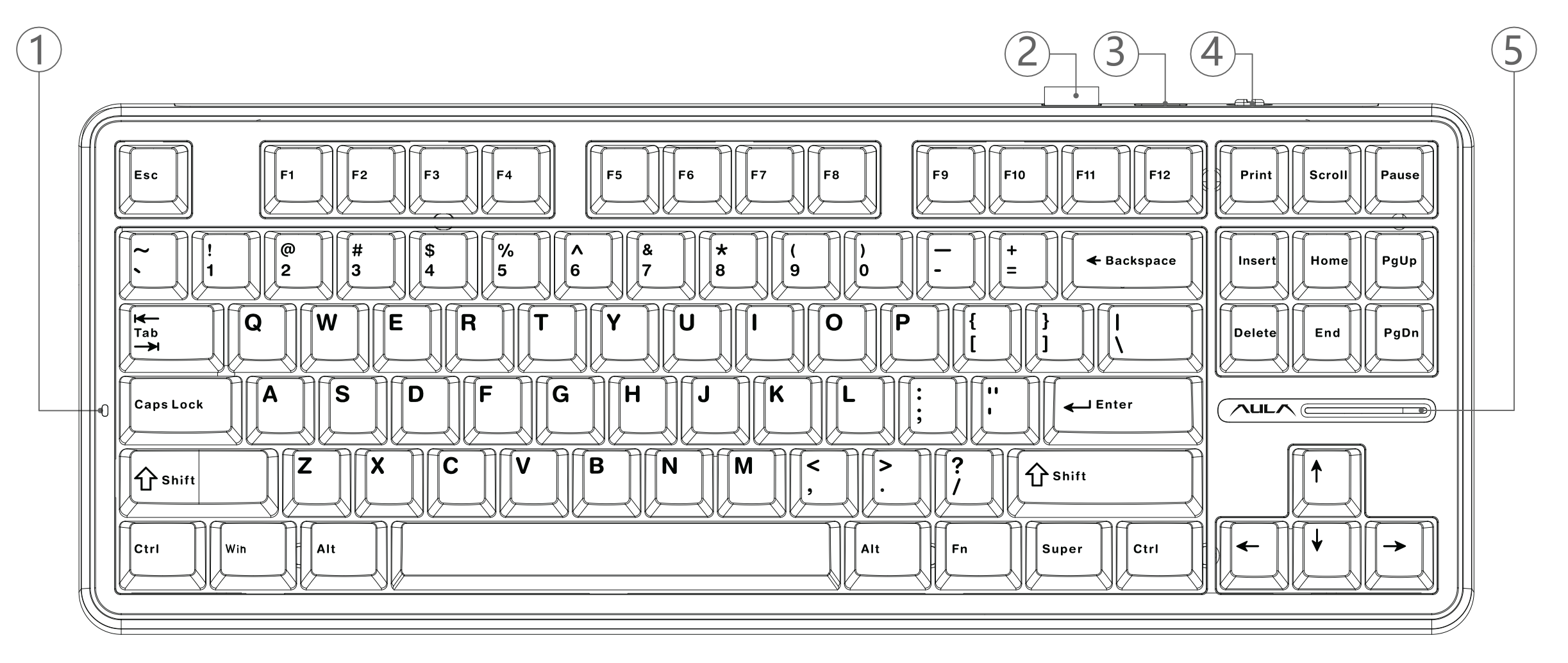
Windows 键盘

这里以手上的狼蛛 AULA F87Pro 键盘为例:

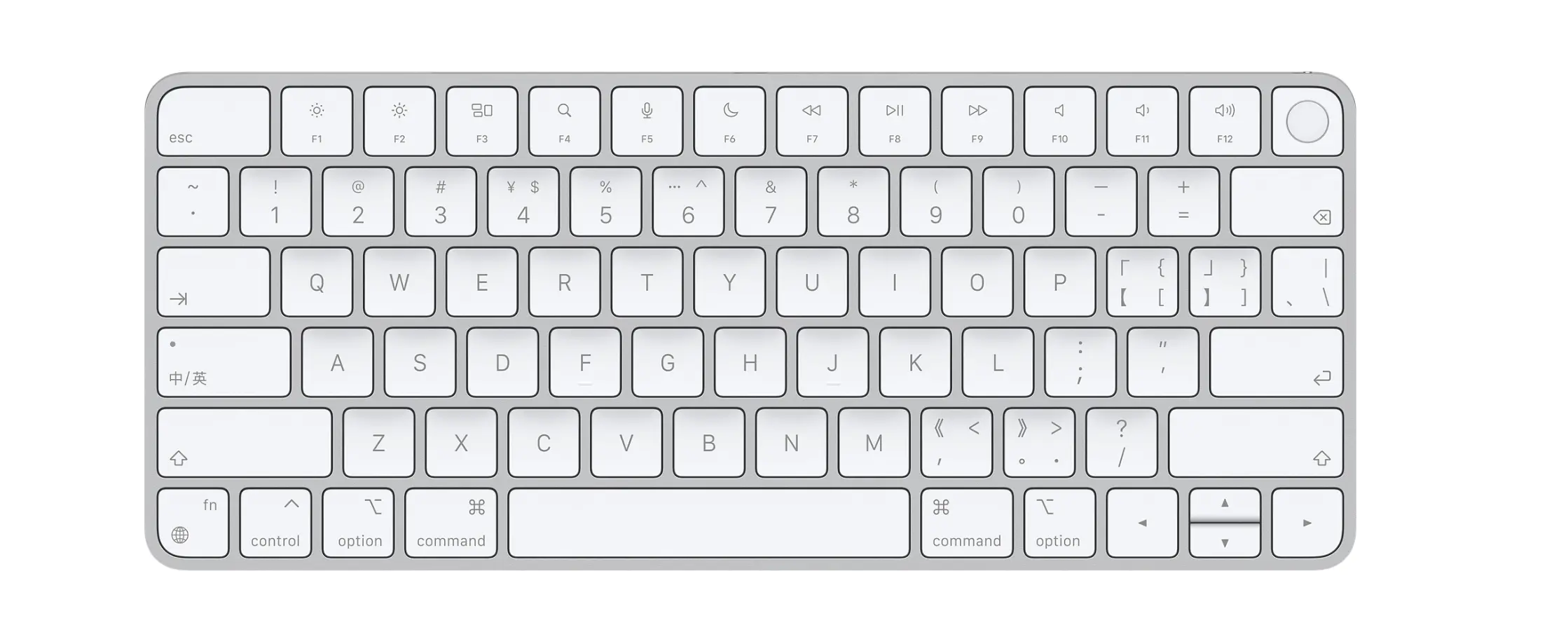
MacOS 键盘布局

对比

在 Windows 下,复制和粘贴的快捷键分别是 Ctrl + C 和 Ctrl + V。

在 MacOS 下,复制和粘贴的快捷键分别是 command + C 和 Command + V。

当前测试可以发现:

  • Ctrl 对应的是 Control (⌃)
  • Win 对应的是 Command(⌘)
  • Alt 对应的是 Option (⌥)

映射关系

当前 MacOS 系统版本:27.2 (26B123)。

参考 MacOS 快捷键

参考 Windows 快捷键

Karabiner Elements

Github 仓库地址

安装

1
2
3
4
5
6
7
$ brew info --cask karabiner-elements
==> karabiner-elements ✔ (Karabiner Elements): 16.3.0 (auto_updates)
Keyboard customiser
https://karabiner-elements.pqrs.org/
...

$ brew install --cask karabiner-elements

安装过程需要登陆授予 sudo 权限

运行

安装完成后,存在两个软件:

  • Karabiner-Elements
  • Karabiner-EventViewer

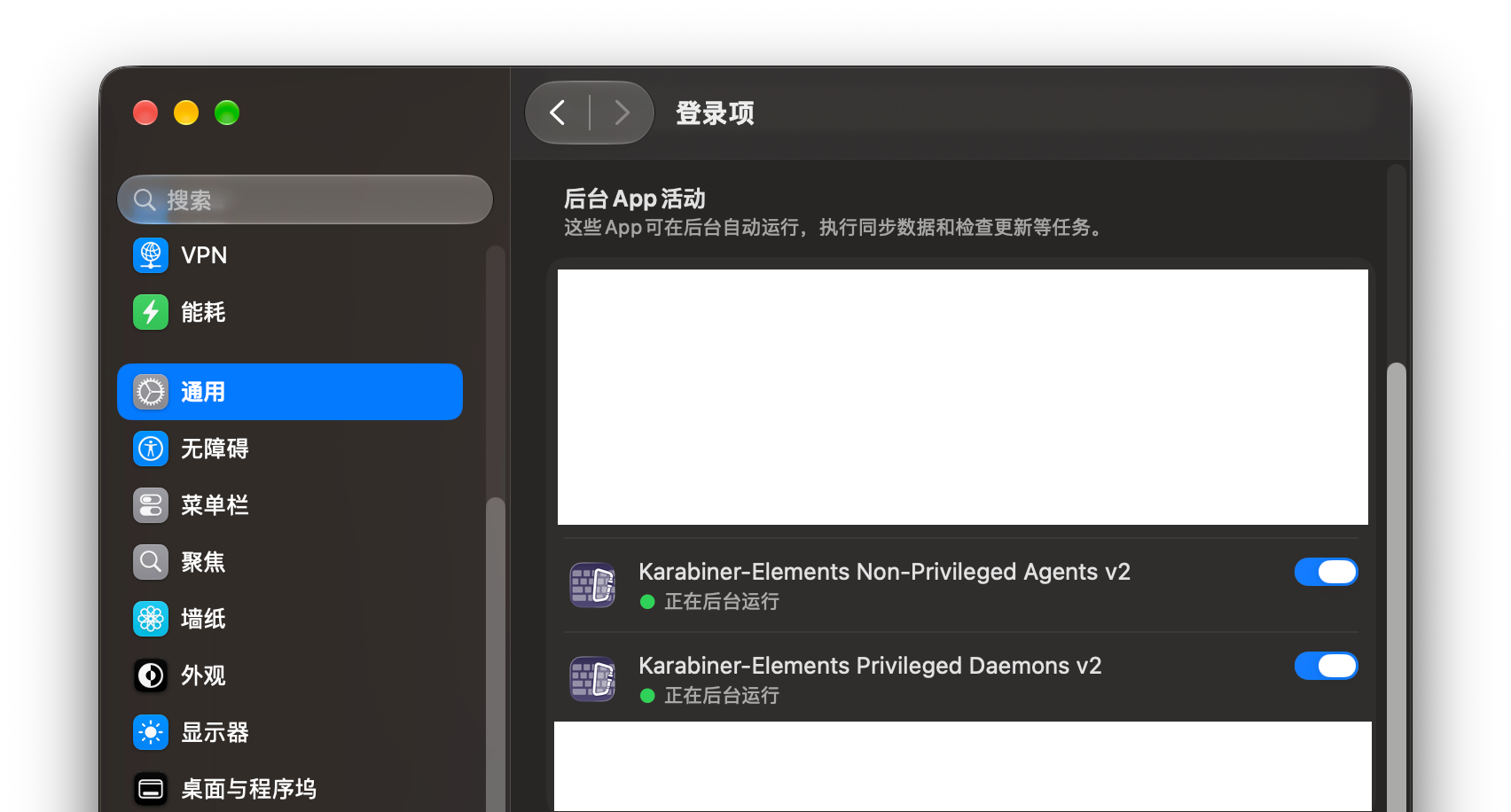
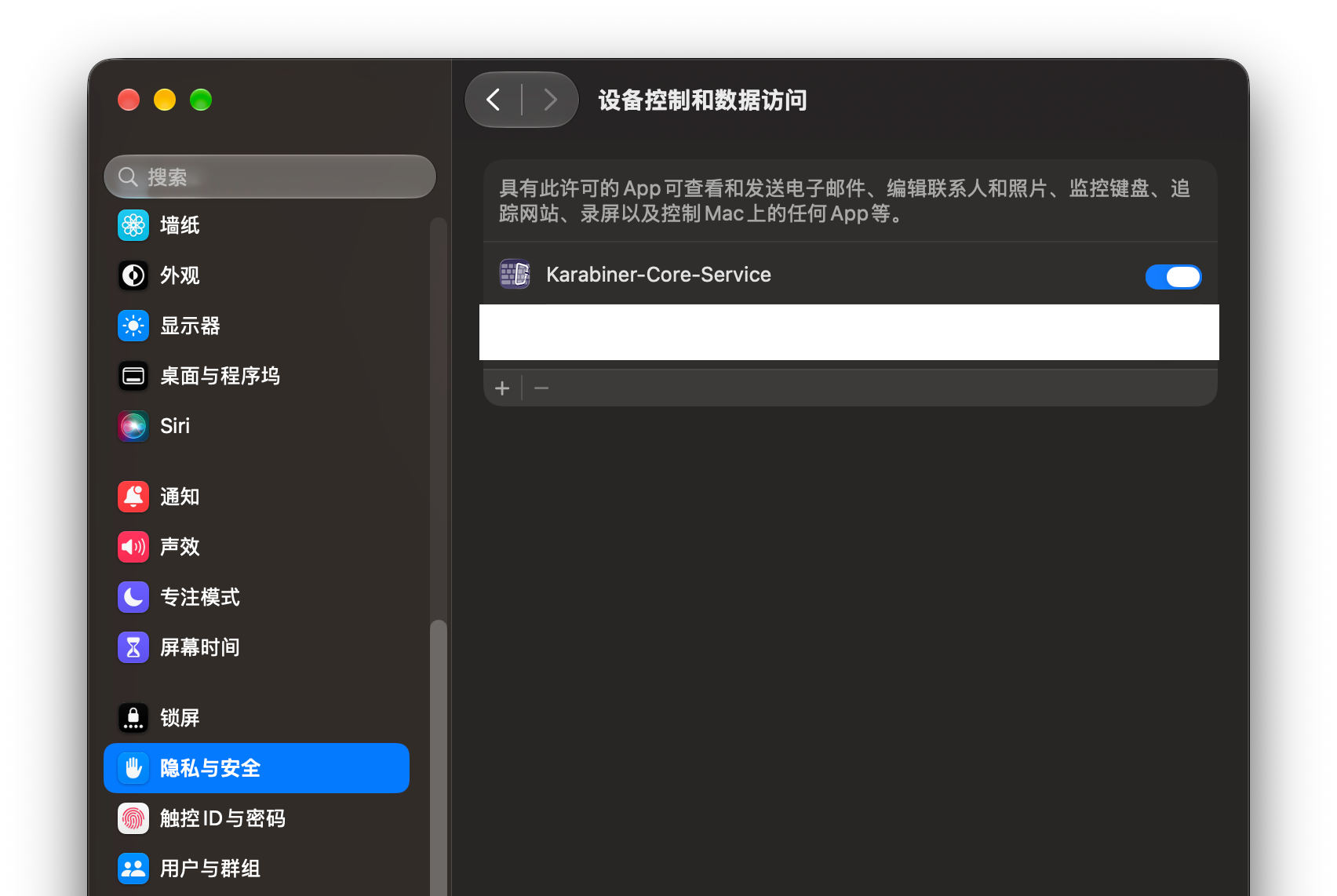
第一次运行时 Karabiner-Elements 会申请授权以下权限:

  • Background Serices

    image-20261102012118351

  • Accessibility

    image-20261102012611807

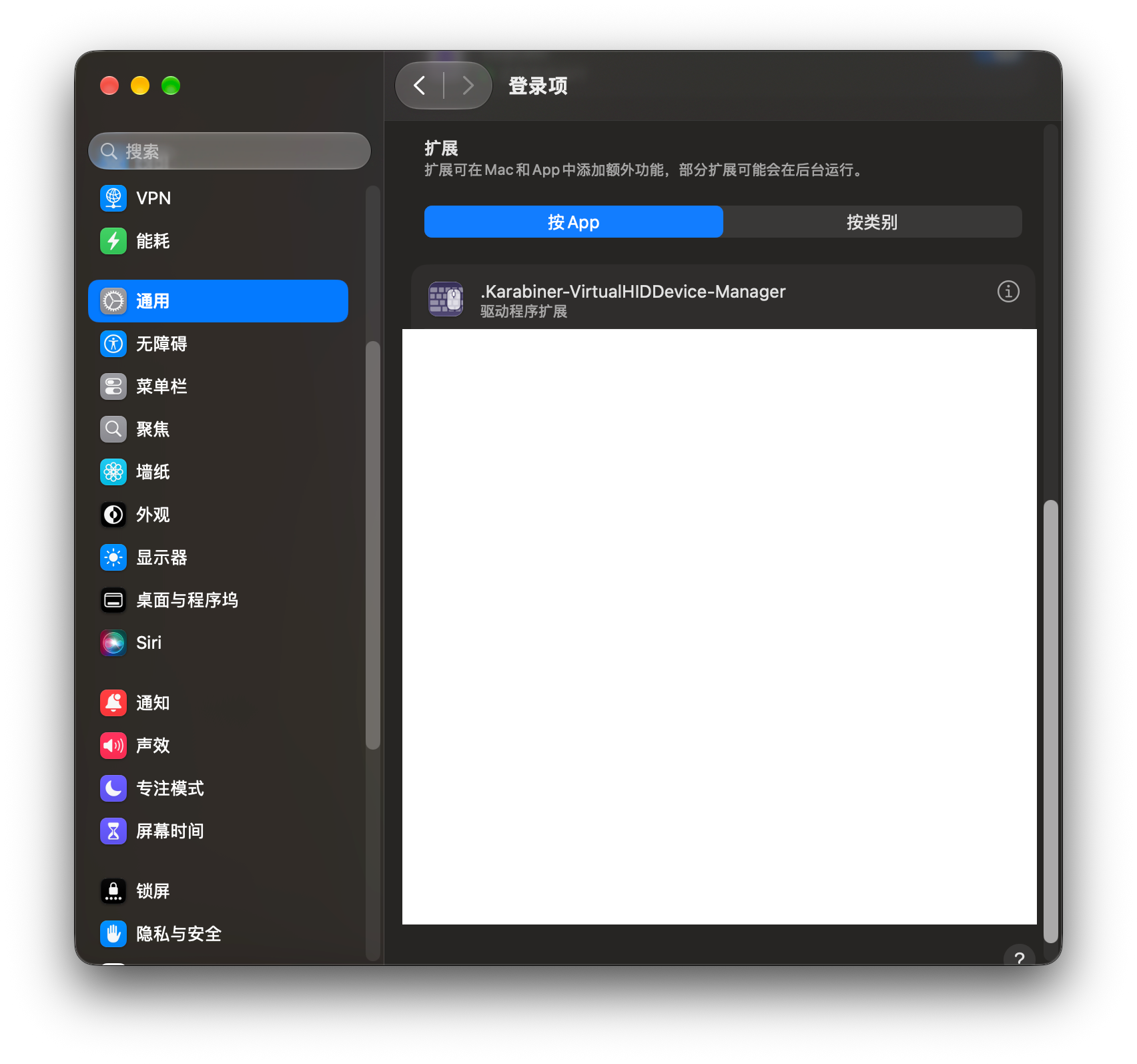
  • Driver Extension

    image-20261102155827657

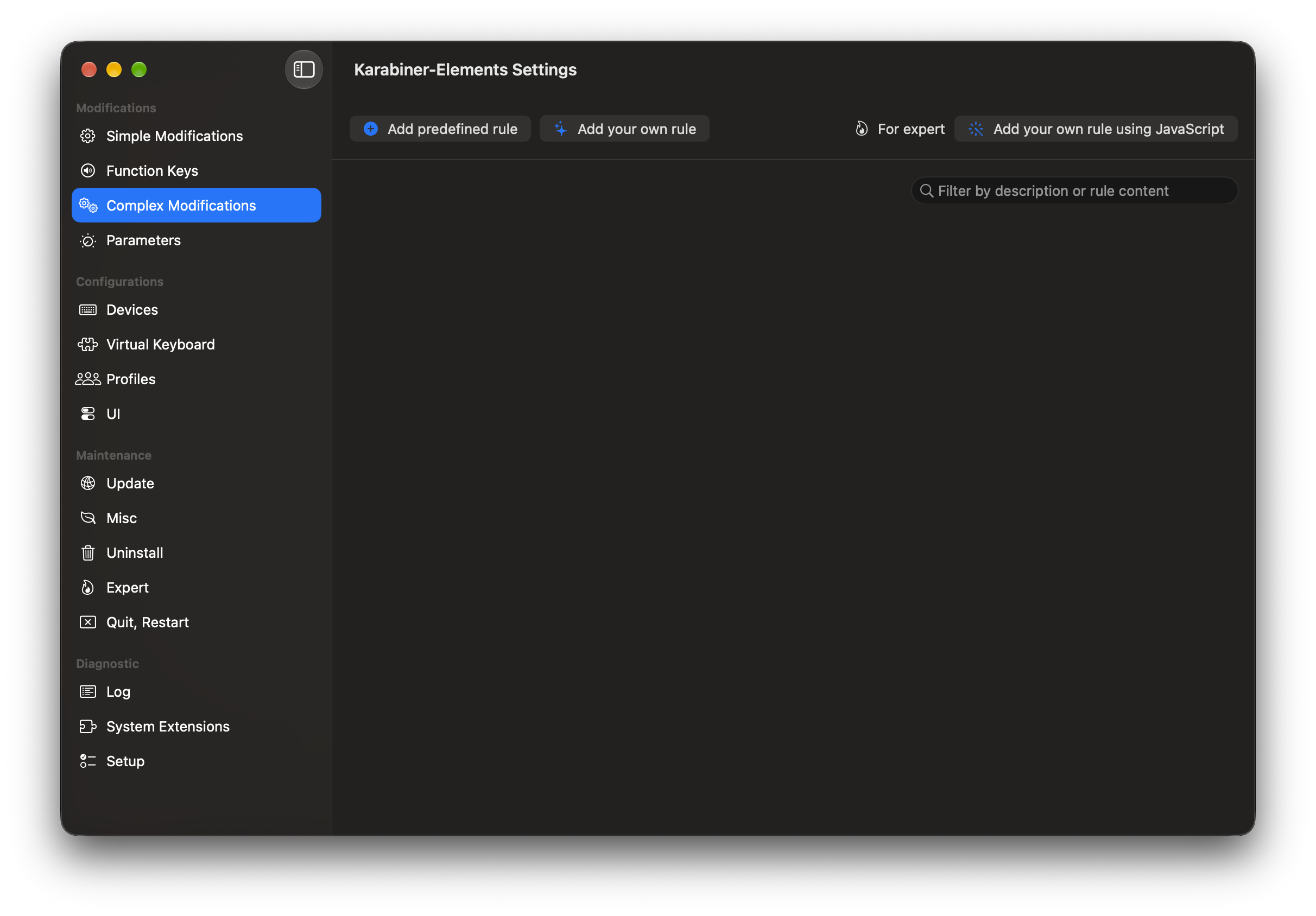
配置

image-20261102160325118

  • 可以通过 Complex Modifications -> Add your own rule,然后在打开的窗口中修改。

  • 可以通过命令修改

    1
    2
    3
    4
    
    $ mkdir -p ~/.config/karabiner/assets/complex_modifications
    
    # 可以使用不同的编译器, 这里使用的是 vscode
    $ code ~/.config/karabiner/assets/complex_modifications/Windows-keyboard-map.json
    

    然后在通过 Complex Modifications -> Add predefined rule 添加刚刚新创建的规则。

其 Json 字段的含义参考官方文档 complex_modifications manipulator definition

参考:

  1
  2
  3
  4
  5
  6
  7
  8
  9
 10
 11
 12
 13
 14
 15
 16
 17
 18
 19
 20
 21
 22
 23
 24
 25
 26
 27
 28
 29
 30
 31
 32
 33
 34
 35
 36
 37
 38
 39
 40
 41
 42
 43
 44
 45
 46
 47
 48
 49
 50
 51
 52
 53
 54
 55
 56
 57
 58
 59
 60
 61
 62
 63
 64
 65
 66
 67
 68
 69
 70
 71
 72
 73
 74
 75
 76
 77
 78
 79
 80
 81
 82
 83
 84
 85
 86
 87
 88
 89
 90
 91
 92
 93
 94
 95
 96
 97
 98
 99
100
101
102
103
104
105
106
107
108
109
110
111
112
113
114
115
116
117
118
119
120
121
122
123
124
125
{
    "description": "Windows keyboard map",
    "manipulators": [
        {
            "description": "左侧 Ctrl + Shift 映射为 Ctrl + 空格 (切换输入法)",
            "type": "basic",
            "from": {
                "key_code": "left_shift",
                "modifiers": {
                    "mandatory": ["left_control"]
                }
            },
            "to": [
                {
                    "key_code": "spacebar",
                    "modifiers": ["left_control"]
                }
            ]
        },
        {
            "description": "将左侧 Ctrl 映射为 Command (排除终端)",
            "type": "basic",
            "from": {
                "key_code": "left_control"
            },
            "to": [
                {
                    "key_code": "left_command"
                }
            ],
            "conditions": [
                {
                    "type": "frontmost_application_unless",
                    "bundle_identifiers": [
                        "^com\\.apple\\.Terminal$",
                        "^com\\.googlecode\\.iterm2$"
                    ]
                }
            ]
        },
        {
            "description": "左侧 Alt + Tab 映射为 Command + Tab (切换应用)",
            "type": "basic",
            "from": {
                "key_code": "tab",
                "modifiers": {
                    "mandatory": ["left_option"],
                    "optional": ["any"]
                }
            },
            "to": [
                {
                    "key_code": "tab",
                    "modifiers": ["left_command"]
                }
            ]
        },
        {
            "description": "Alt + 左箭头 映射为 Command + 左箭头 (后退)",
            "type": "basic",
            "from": {
                "key_code": "left_arrow",
                "modifiers": {
                    "mandatory": ["left_option", "right_option"],
                    "optional": ["any"]
                }
            },
            "to": [
                {
                    "key_code": "left_arrow",
                    "modifiers": ["left_command"]
                }
            ]
        },
        {
            "description": "Alt + 右箭头 映射为 Command + 右箭头 (前进)",
            "type": "basic",
            "from": {
                "key_code": "right_arrow",
                "modifiers": {
                    "mandatory": ["left_option", "right_option"],
                    "optional": ["any"]
                }
            },
            "to": [
                {
                    "key_code": "right_arrow",
                    "modifiers": ["left_command"]
                }
            ]
        },
        {
            "description": "Home 映射为 Command + 左箭头 (行首)",
            "type": "basic",
            "from": {
                "key_code": "home",
                "modifiers": {
                    "optional": ["any"]
                }
            },
            "to": [
                {
                    "key_code": "left_arrow",
                    "modifiers": ["left_command"]
                }
            ]
        },
        {
            "description": "End 映射为 Command + 右箭头 (行尾)",
            "type": "basic",
            "from": {
                "key_code": "end",
                "modifiers": {
                    "optional": ["any"]
                }
            },
            "to": [
                {
                    "key_code": "right_arrow",
                    "modifiers": ["left_command"]
                }
            ]
        }
    ]
}

版权声明

本文为「Zeepunt 日常随笔」的原创文章,遵循 CC BY-NC-ND 4.0 许可协议。允许在署名作者、注明原文链接且不作任何更改的前提下非商业性地分享本文。

原文链接:https://zeepunt.github.io/article/macos/macos-%E5%A4%96%E6%8E%A5%E9%94%AE%E7%9B%98-karabiner-elements/